
Director's guide
Welcome to Curator. This guide takes you from a new account to a choir that knows what it is singing at the next rehearsal, and has already heard its own part. The first round takes most directors about twenty minutes. Everything else can follow at your own pace.
- Create your choir
- Add your voice parts
- Add your music
- Check a converted score
- Plan the next date
- Invite your singers
- See who has prepared
- Keep everyone informed
1. Create your choir
Sign up at curatormusic.app with your email address or your Google account. On your dashboard, choose Create a choir, give it a name, and add a logo and a cover photo if you have them. You can change all of this later with Edit on the choir page.
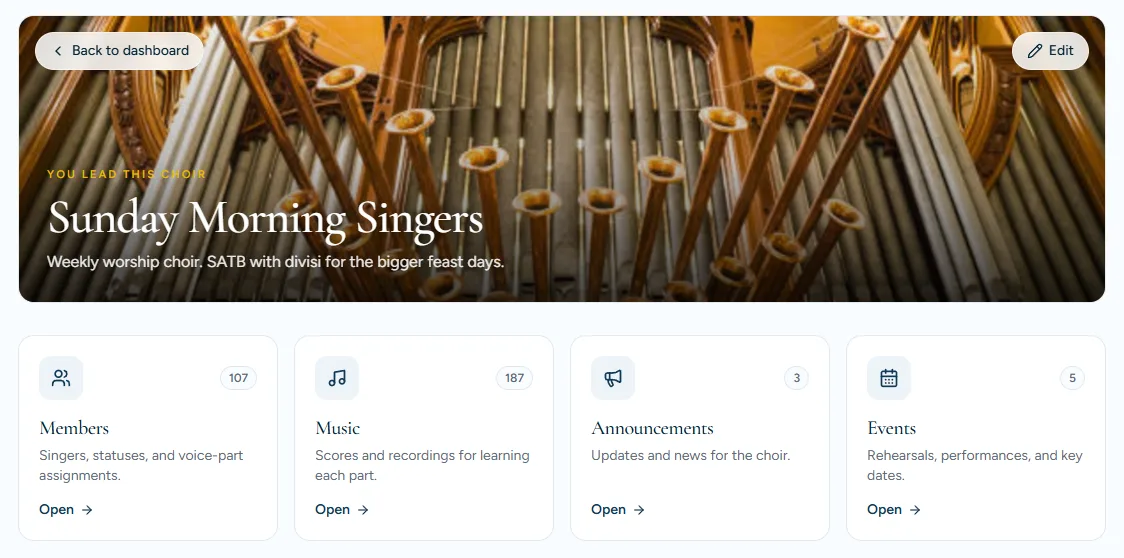
The choir page is home base for everyone. The next date and the music for it sit at the top, with Members, Music, Announcements and Events underneath.
2. Add your voice parts
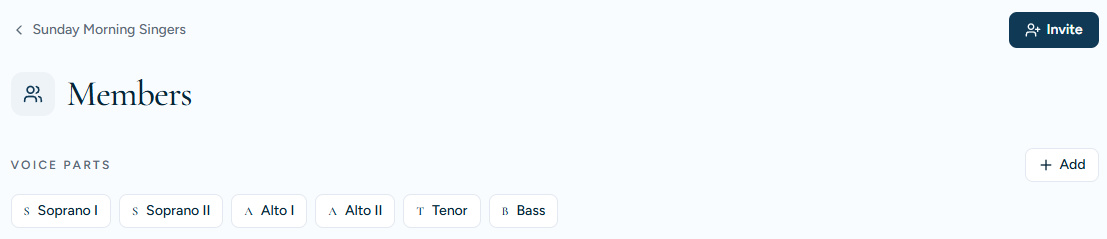
Open Members and add the sections your choir actually sings in under Voice parts: Soprano, Alto, Tenor and Bass, or Soprano I and Tenor II, whatever fits. Every singer belongs to a part, which is how announcements and practice recordings reach the right people.
3. Add your music
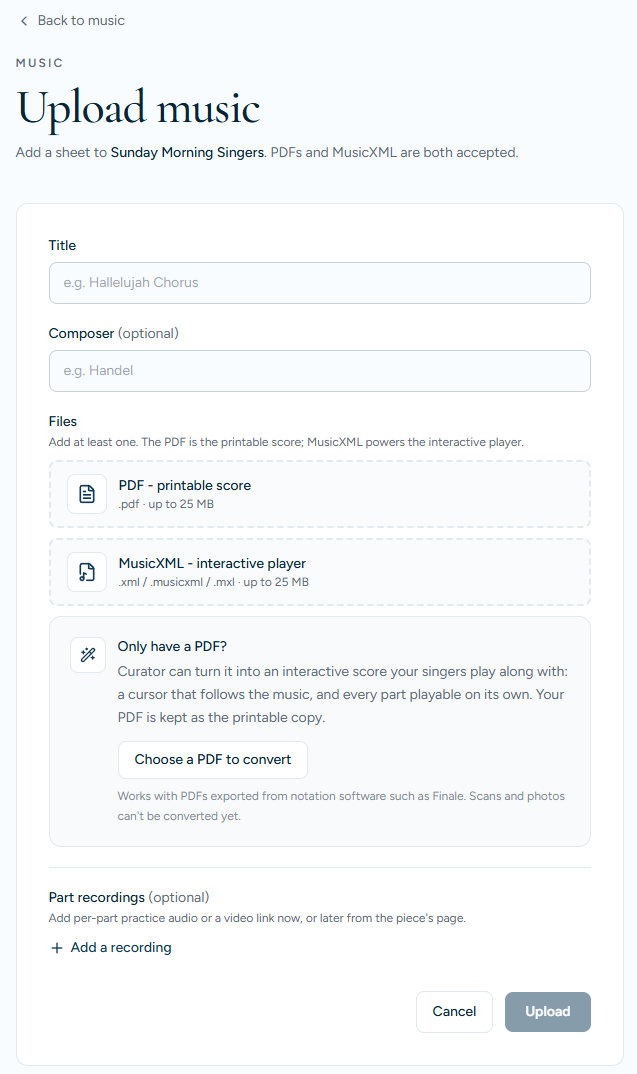
Open Music and choose Upload. A piece can carry three things:
- A PDF, the printable score your singers already know.
- A MusicXML file, which powers the interactive player: a cursor that follows the music, and every part playable on its own.
- Practice recordings, one for each part and a full mix, if you have them.
Only have a PDF? Most choirs do. Below the two file slots, choose Choose a PDF to convert. Curator reads the PDF in your browser and makes the interactive score from it. It shows you the parts it found so you can name them (Soprano, Alto and so on), and Upload saves both the PDF and the interactive score.
This works with PDFs exported from notation software. Scanned or photographed music can't be converted yet, but it still uploads as the printable score.
4. Check a converted score
Open the piece and choose Play interactive. Listen through once with your printed score beside you.
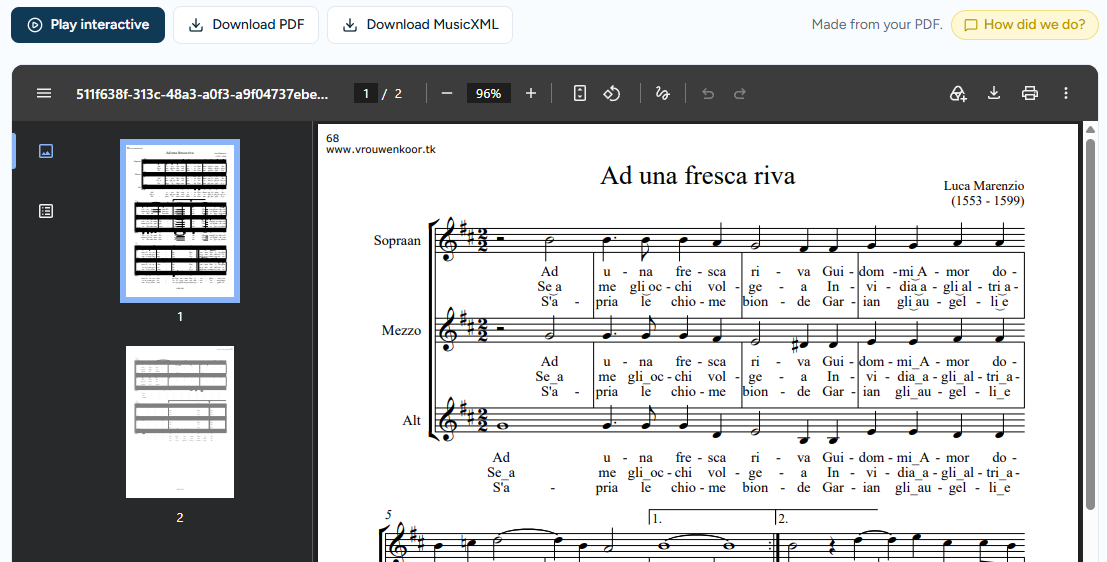
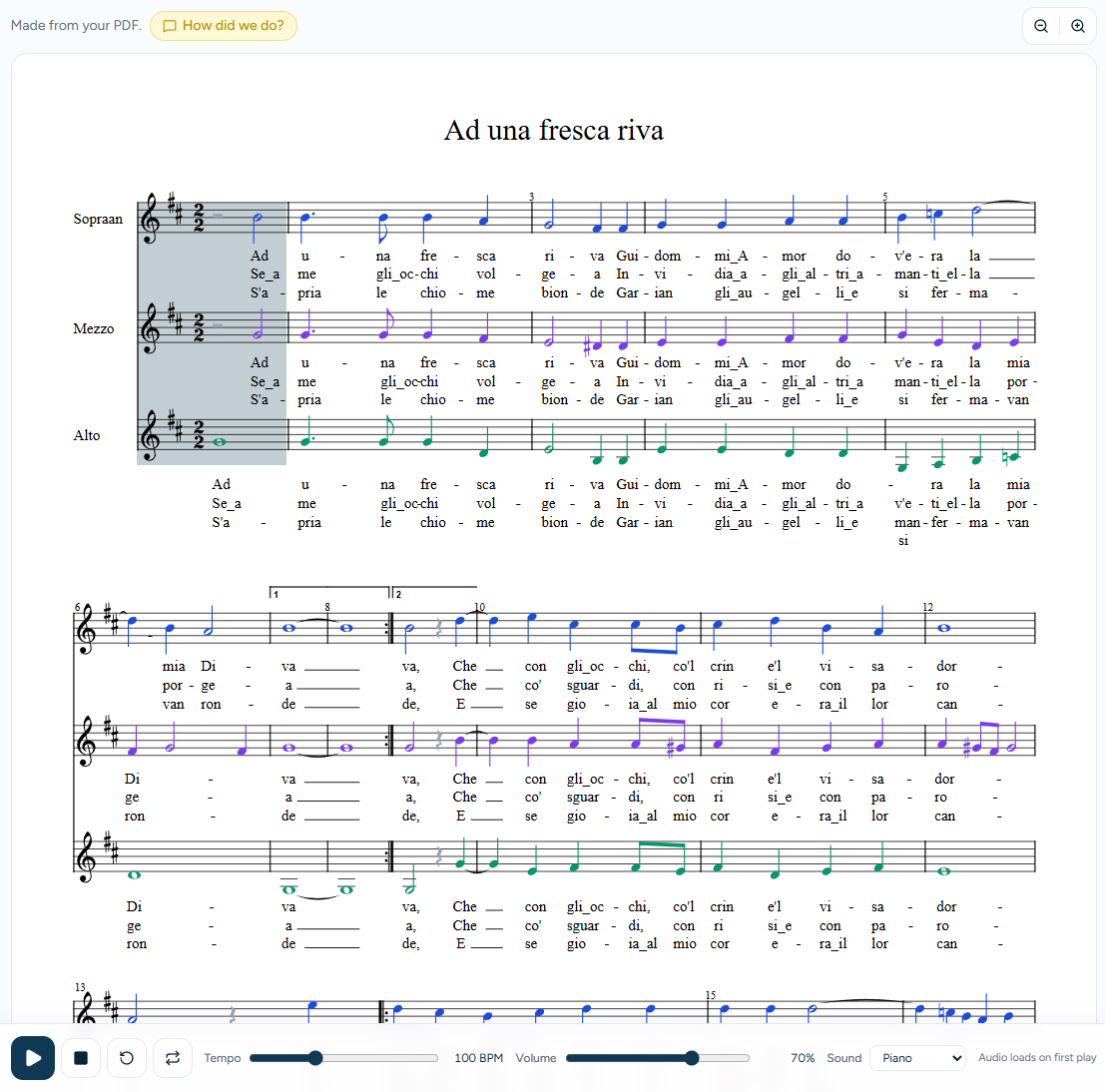
If something is wrong, such as a wrong note, a lyric under the wrong part, or a bar that sounds odd, choose How did we do? on the piece or in the player. Tell us the bar and what you expected. Curator sends us your PDF and the converted score automatically, so there is nothing to attach, and only the Curator team sees what you send.
The box stays out of the way of the score while you type, and you can minimize it whenever you need to look. In the player, Add current bar puts the bar the cursor is on into your note.
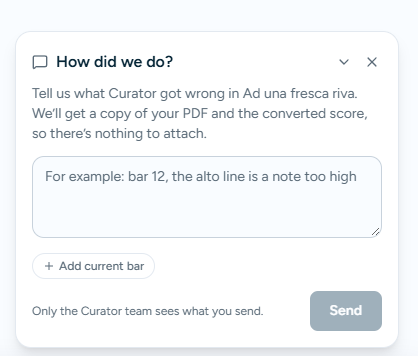
If Curator can't read a PDF from notation software at all, choose Send us this PDF and we will use it to teach Curator that kind of file.
5. Plan the next date
Open Events and choose New event. Give it a title, a date and time, and a place. Rehearsals can repeat every week, so you only set them up once.
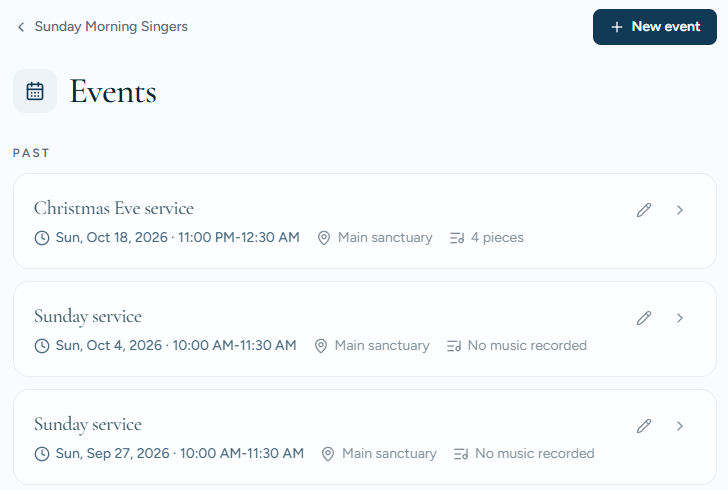
Then open the event and add the pieces you will sing, by title or composer. That list is the first thing your singers see when they open the choir, so nobody has to ask what to bring.
6. Invite your singers
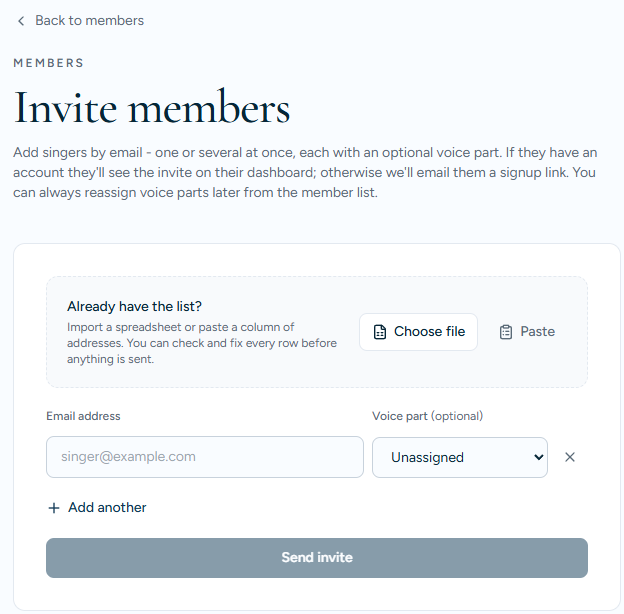
In Members, choose Invite. Add one email address or several at once, each with its voice part, or bring in a spreadsheet column with Already have the list? Each singer receives an email with a link to join, already placed in their part. An invitation lasts 3 days, and you can invite anyone again if theirs runs out. Everyone who has not joined is listed in Members, under Invited, not joined yet. The paper plane beside a name is Resend: it sends them a fresh invitation.
Two things worth telling your singers when you announce it:
- Check your spam folder for the invitation. Curator is new, and some email services are cautious with new senders. Marking it as "not spam" helps everyone who joins after you.
- No app store needed. Curator runs in the phone's web browser, and a minute's setup puts it on the home screen with its own icon, so nobody has to open the browser each time. Send your singers curatormusic.app/install, which shows how on iPhone, Android and computers.
7. See who has prepared
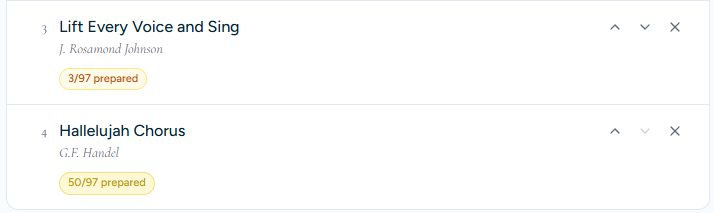
Open an event to see, piece by piece, how many singers have opened the score or played a recording since you added it to that event, and before the date. A song the choir learned months ago starts again at zero on a new date. Tap the readiness card to see who: every singer by voice part, the ones who have not opened anything first. A piece counts once it has an interactive score or a recording to open, so a PDF on its own is not tracked.
8. Keep everyone informed
Announcements go to the whole choir or only to the parts you choose, so the altos are not reading notices meant for the basses. Replies stay with the announcement instead of getting lost in a group chat.
Sharing the work
Choose Make co-leader on a member in Members to share the running of the choir. Co-leaders can look after the music, events, members and announcements. Only you can delete the choir, hand it over, or change who is a co-leader.
Questions and problems
Use Send feedback in your account menu, top right, for anything at all. It comes straight to us, and we read every note.